Banking, shopping, email, streaming, work tools and social media all ask for a password, and few of us can remember a different one for every account. The tempting shortcut is to reuse the same password everywhere, but that is one of the biggest risks to your online security. If you have ever wondered what is a password manager and whether you need one, this guide explains how it works, its benefits and limits, and how to choose and set one up with confidence.
What Is a Password Manager?
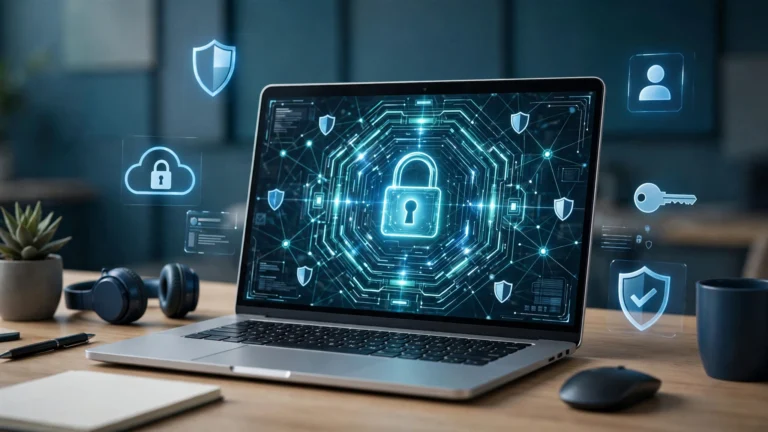
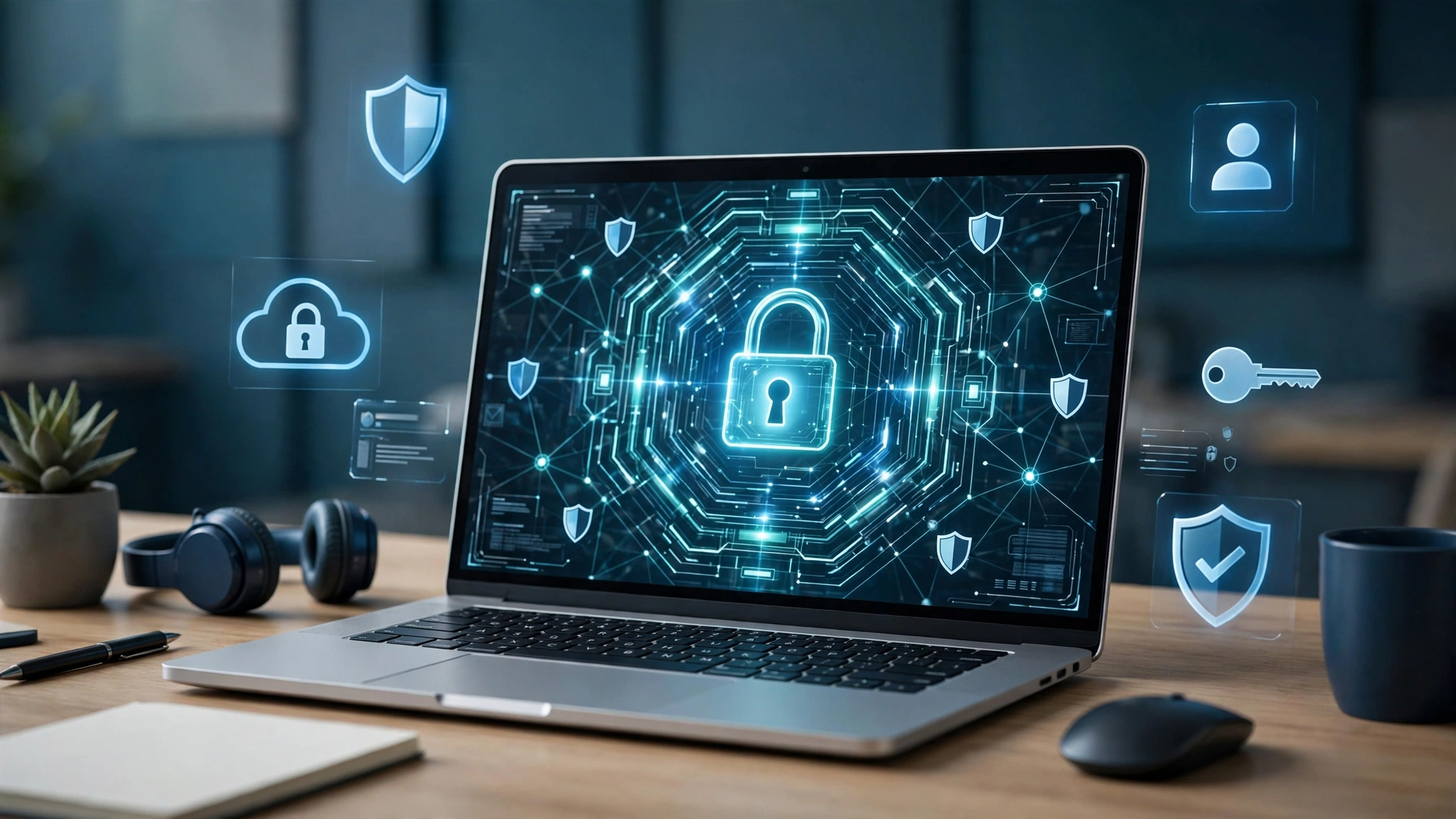
A password manager is an app or service that stores your usernames and passwords in one secure, encrypted place. Instead of remembering dozens of logins, you remember just one strong master password. The manager remembers the rest, fills in login forms on websites and apps, and can create long, random passwords that would be impossible to memorise.
Think of it as a secure notebook that only you can open, except that it locks itself, works across your phone, tablet and computer, and never stores your passwords in plain text. Because every account can have a unique password, a data breach at one website does not automatically put your other accounts at risk. Password managers are also a practical part of good access control, helping to confirm that the person signing in is really you.
How Does a Password Manager Work?
Your encrypted vault
Your logins are kept in a digital vault, scrambled using strong encryption, commonly AES-256. Scrambled data is meaningless without the correct key, so even if an encrypted vault file were copied, it should not reveal your passwords.
Your master password
Your master password unlocks the vault, so it must be long, unique and never used for anything else. Many services also let you unlock it with fingerprint or face recognition on a trusted device, but the master password remains the key behind that convenience.
Zero-knowledge design
Many reputable managers use a zero-knowledge approach: your vault is encrypted and decrypted on your own device, and the provider does not know your master password or keep a readable copy of your logins. The trade-off is that if you forget your master password and lose your recovery options, the provider may not be able to restore access.
Everyday use
When you create an account, the manager can generate and save a random password. When you return, it offers to autofill your details. Good autofill can also warn you if a sign-in page does not match the saved site.
Types of Password Manager
Browser built-in managers
Browsers such as Chrome, Edge, Firefox and Safari can save and autofill passwords. Examples include Google Password Manager and Apple’s Passwords app, which builds on iCloud Keychain. These tools are convenient and far better than reusing passwords, although their features and cross-platform support vary.
Standalone password manager apps
Dedicated services such as Bitwarden, 1Password and Dashlane are designed specifically for storing logins and other sensitive items. They usually work across browsers, phones and computers, and may add secure sharing, password health checks and alerts if a saved site appears in a known breach.
Family and business plans
Family versions let each person keep a private vault while sharing selected items, such as a household streaming login, without sending the password in a message. Business versions add administrator controls, shared team vaults and tools for removing access when someone leaves.
Benefits of Using One
- Unique passwords everywhere: Every account can have a different password without you memorising them all.
- Stronger passwords: A generator creates long, random combinations that are much harder to guess.
- Faster sign-ins: Autofill saves time and reduces typing mistakes.
- Works across devices: Your logins follow you securely between computer, phone and tablet.
- Safer sharing: Selected logins can be shared without exposing them in email or chat.
- Useful warnings: Many managers highlight weak, reused or compromised passwords so you know what to fix first.
Honest Limitations and Risks
A password manager improves security, but it is not magic. Your master password becomes a single point of failure: if it is weak, reused or given away in a phishing attack, someone could gain access to a great deal. That is why two-factor authentication for the password manager account itself matters so much.
You are also placing trust in the provider’s software and security practices. No service can promise it will never have a problem, and an unlocked vault on a device infected with malware can still be exposed. Keeping devices updated, locking your vault when you step away and staying alert to fake sign-in pages remain essential. Do not store your master password inside the vault it protects, and do not ignore the recovery instructions when you set the account up.
How to Choose a Password Manager
- Security model: Look for strong encryption, independent security audits and a clear zero-knowledge design.
- Two-factor authentication: Choose a service that protects your account with an authenticator app, security key or another second factor.
- Compatibility: Check it works on your phone, computer and preferred browsers.
- Ease of use: A clear app and reliable autofill make you far more likely to keep using it.
- Recovery options: Understand what happens if you forget your master password, and keep recovery information somewhere safe offline.
- Reputation: Look at how the company communicates about security and updates, not just its list of features.
How to Set Up a Password Manager, Step by Step
- Step 1: Choose your manager. Pick a reputable built-in or standalone option that works on all your main devices.
- Step 2: Install it safely. Download the app or extension only from the provider’s official website or your device’s official app store, and create your account.
- Step 3: Create a strong master password. The UK’s National Cyber Security Centre recommends three random words for a strong password that is easier to remember. Combine three unrelated words, use the result only for this account, and never reuse it elsewhere. The NCSC also supports using password managers for the many other passwords you cannot memorise.
- Step 4: Turn on two-factor authentication. Protect the manager account itself, and save any recovery codes securely offline.
- Step 5: Import or add your logins. Many managers can import passwords saved in your browser. Check the imported records carefully.
- Step 6: Change the weakest passwords first. Start with email, banking and shopping accounts. Email matters most because it can reset other passwords. Generate a fresh, unique password for each.
- Step 7: Install it everywhere. Add the app and browser extension to each device, test autofill, and set the vault to lock automatically after a short period.
Best Practices for Staying Safe
Keep your master password private and unique. Turn on two-factor authentication for your most important accounts, keep apps and devices updated, and be suspicious of unexpected messages asking you to sign in through a link. Lock your devices with a PIN, fingerprint or face recognition. If you share a login with family, use the manager’s sharing feature instead of sending the password in plain text.
Frequently Asked Questions
Is it safe to put all my passwords in one place?
It can be, provided the vault is properly encrypted and protected by a strong, unique master password and two-factor authentication. This is generally safer than reusing a few memorable passwords, although no method removes risk completely.
What happens if I forget my master password?
With a zero-knowledge service, the provider usually cannot see or reset it for you. You may be able to use a recovery code or a trusted device if you set one up in advance, so keep those details somewhere secure.
Are free password managers worth using?
A reputable free or browser built-in manager can be a sensible first step, and is better than password reuse. Compare features, device support and recovery options first, and only download from an official source.
Can a password manager create passwords for me?
Yes. Most can generate long, random passwords and save them automatically. This is one of their biggest advantages, because you do not need to invent or remember a complex password for every account.
Should I still use two-factor authentication?
Yes. The manager stores your password, but two-factor authentication adds another check, such as a code or security key. Use it wherever possible, especially for email, banking and the password manager itself.
Conclusion
A password manager solves a problem human memory handles badly: dozens of accounts, each needing a long and unique password. By keeping them in an encrypted vault, unlocked by one strong master password, you can sign in faster and limit the damage if one website is breached. Choose a reputable service, protect it properly, and fix your most important reused passwords first.
About the Author