
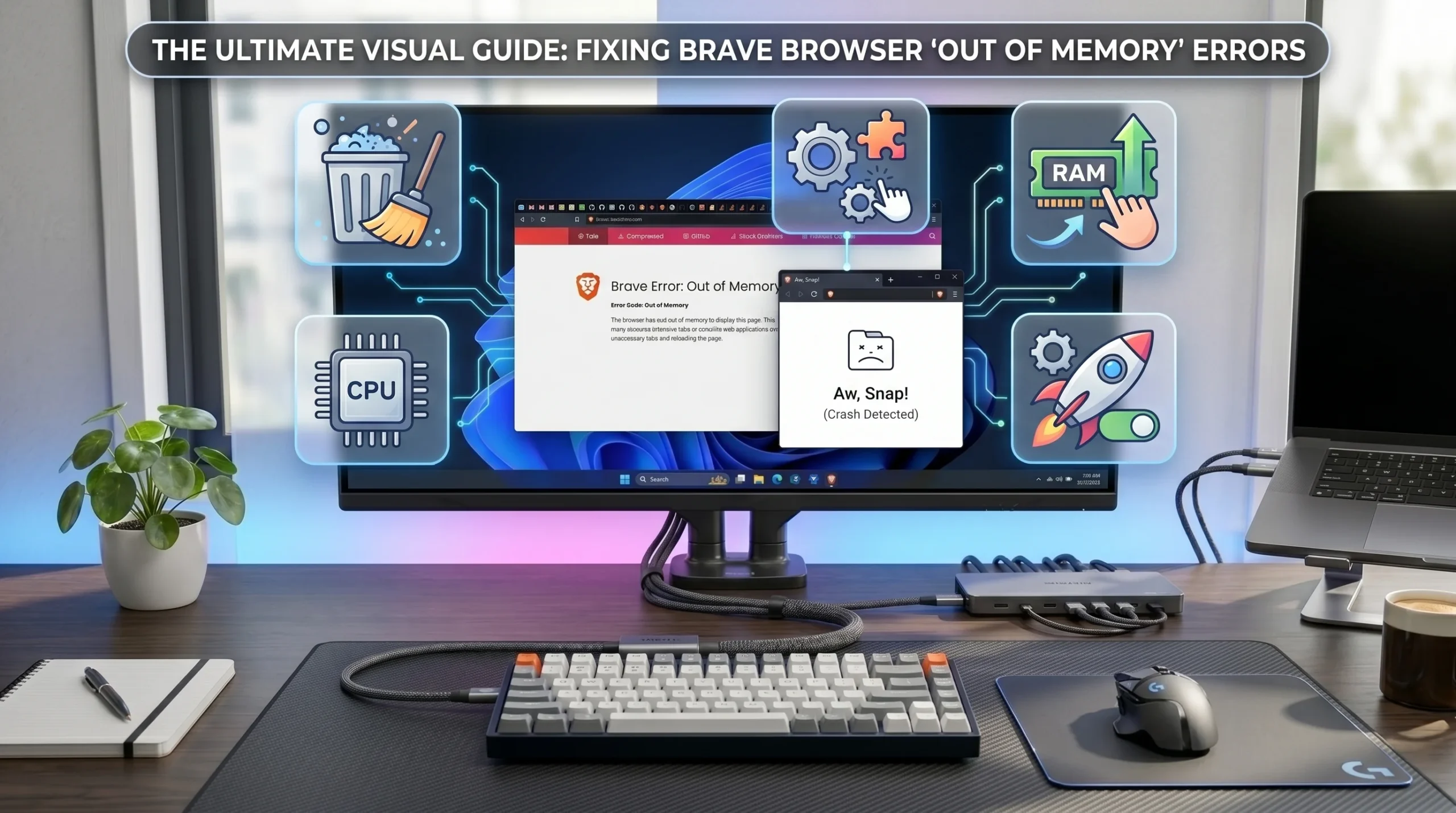
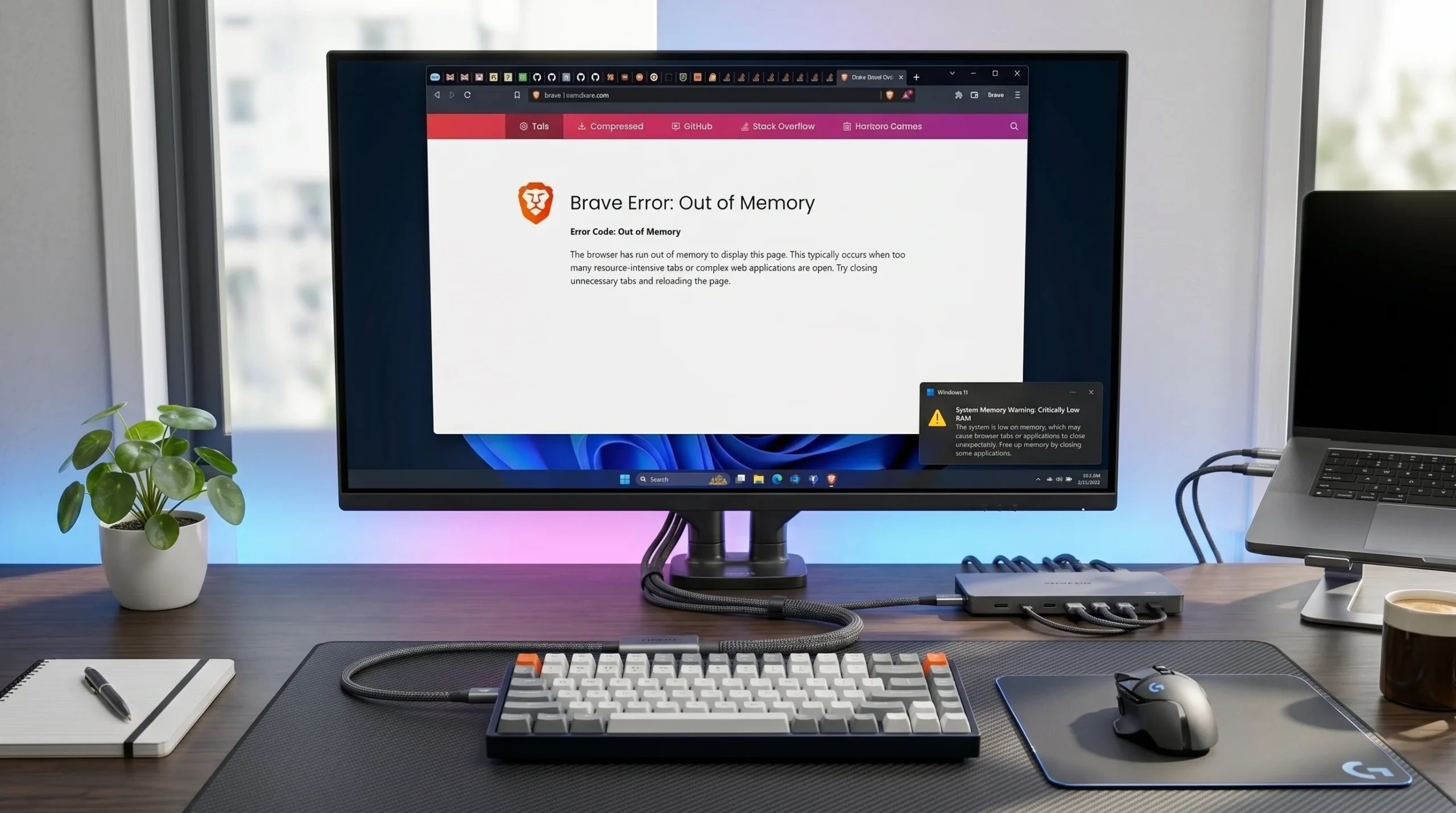
If you have recently encountered the Brave error code out of memory, you are not alone. Many users experience this frustrating problem when browsing websites, opening multiple tabs, or using resource-intensive web applications. The error can cause pages to crash, display an Aw Snap message, or stop loading entirely.
In most cases, the issue is related to browser memory allocation, high RAM usage, corrupted browser data, or extension conflicts. The good news is that the problem is usually easy to fix with a few troubleshooting steps.
This guide explains what the error means, why it happens, and how to fix it effectively while improving overall browser performance.
What Does Brave Error Code Out of Memory Mean?
The Brave error code out of memory appears when the browser cannot allocate enough memory to load a webpage or complete a process. Even computers with sufficient RAM can experience this issue because modern browsers use separate processes for tabs, extensions, and background tasks.
What Is an Out of Memory Error?
An out-of-memory error occurs when a browser runs out of available resources needed to display content. This may happen because of excessive RAM consumption, memory leaks, corrupted cache files, or poorly optimized websites.
Many users ask, “What does error code out of memory mean?” Simply put, the browser has reached a point where it cannot access additional memory required to continue operating normally.
Why Brave Shows This Error
Brave Browser is built on Chromium, which uses a multi-process architecture. While this improves security and stability, it can also increase memory usage. When memory allocation fails, the browser may display a browser memory error or crash a tab unexpectedly.
Difference Between RAM Issues and Browser Bugs
Not every out-of-memory error is caused by low RAM. Sometimes browser bugs, outdated software, or extension conflicts trigger the problem. Understanding the difference helps you choose the right fix.
Why Does Brave Browser Run Out of Memory?
Several factors can contribute to a Brave out-of-memory error.
Too Many Open Tabs
Each tab consumes system resources. Opening dozens of tabs simultaneously can increase memory consumption and lead to a browser performance issue.
Memory-Hungry Websites
Modern websites often contain videos, animations, advertisements, and scripts. These elements require substantial memory and processing power.
Faulty Browser Extensions
A common cause of a Brave extension error is an extension that consumes excessive resources. Poorly coded extensions can create memory leaks and affect browser stability.
Corrupted Cache and Cookies
Temporary files stored by the browser may become corrupted over time. This can interfere with page rendering and create browser cache corruption issues.
Hardware Acceleration Problems
Hardware acceleration is designed to improve performance, but on some systems it can contribute to browser crashes and memory allocation problems.
Brave Browser Memory Leak
A Brave memory leak occurs when the browser continues consuming memory without releasing it properly. This issue can eventually result in a Brave browser memory issue.
Outdated Browser Version
Using an outdated version of Brave may expose you to software bugs and browser resource management problems that have already been fixed in newer releases.
How to Fix Brave Error Code Out of Memory
If you are facing the Brave error code out of memory, try the following solutions one by one.
Restart Brave Browser
The simplest fix is restarting the browser. This clears temporary processes and frees memory resources.
Close Unused Tabs
Too many active tabs increase RAM usage. Close tabs you no longer need and keep only essential pages open.
Disable Suspicious Extensions
Navigate to the extensions page and disable recently installed add-ons. If the browser becomes stable, an extension conflict may be the cause.
Clear Cache and Cookies
Clearing cache removes corrupted temporary files that may be causing browser cache issues.
Steps:
- Open Settings.
- Select Privacy and Security.
- Click Clear Browsing Data.
- Choose Cache and Cookies.
- Confirm the action.
Update Brave Browser
Keeping Brave updated ensures you have the latest performance improvements and bug fixes.
Disable Hardware Acceleration
To disable hardware acceleration:
- Open Settings.
- Go to System.
- Turn off Hardware Acceleration.
- Restart the browser.
Many users report that this fix resolves a Brave Browser out-of-memory problem.
Create a New Browser Profile
A corrupted browser profile can lead to persistent crashes. Creating a new profile helps eliminate profile-related issues.
Increase Virtual Memory
Windows uses virtual memory when physical RAM is insufficient. Increasing virtual memory can help prevent browser memory errors.
Reinstall Brave Browser
If nothing works, reinstalling Brave can remove corrupted files and restore default settings.
How to Use Brave Task Manager to Identify Memory Problems
One overlooked feature is the Brave Task Manager.
Opening Brave Task Manager
Press Shift + Esc while Brave is open.
Finding High Memory Tabs
The Task Manager displays each tab, extension, and process along with memory usage. This helps identify resource-hungry pages.
Ending Problematic Processes
If a specific process is consuming excessive memory, you can end it directly from the Task Manager.
Using this tool is one of the best ways to diagnose a Brave browser memory error before it causes crashes.
Does Brave Memory Saver Help Prevent Out-of-Memory Errors?
Brave includes a Memory Saver feature designed to reduce RAM usage.
What Is Memory Saver?
Memory Saver automatically places inactive tabs into a sleeping state to reduce resource consumption.
How to Enable It
- Open Settings.
- Navigate to Performance.
- Enable Memory Saver.
Best Settings for Low RAM Systems
Users with 4GB or 8GB RAM can benefit significantly from this feature because it reduces background memory usage.
Brave Shields and RAM Usage: Can Privacy Features Affect Performance?
Brave Shields protect users from trackers and unwanted scripts.
How Shields Work
Shields block advertisements, tracking scripts, and harmful content before it loads.
When Shields May Cause Issues
Although uncommon, certain websites may behave unexpectedly when Shields block required resources.
Testing Shields for Troubleshooting
Temporarily disable Shields on a problematic website and check whether the issue disappears.
How to Reduce Brave Browser RAM Usage
Reducing RAM consumption lowers the risk of encountering the Brave error code out of memory again.
Remove Unnecessary Extensions
Keep only extensions you actively use.
Reduce Background Processes
Disable applications running in the background that consume system resources.
Use Tab Discarding
Tab discarding unloads inactive tabs while keeping them available for quick access.
Optimize Startup Settings
Prevent unnecessary programs from launching automatically when your computer starts.
Out of Memory Error on Windows 10 vs Windows 11
Common Windows 10 Causes
Older hardware and limited RAM are common factors on Windows 10 systems.
Common Windows 11 Causes
Windows 11 often runs more background services, which can increase memory consumption.
System Settings That Matter
Virtual memory configuration, startup applications, and browser settings all play a role in performance.

How to Prevent Brave Memory Errors in the Future
Preventive maintenance can help avoid future browser crashes.
Keep Brave Updated
Install updates regularly to benefit from bug fixes and performance enhancements.
Monitor RAM Usage
Use Task Manager to monitor memory consumption and identify unusual behavior.
Clean Cache Regularly
Removing temporary files improves browser optimization and reduces the risk of corruption.
Avoid Excessive Extensions
Install only trusted extensions and remove those you no longer need.
Frequently Asked Questions
What does out of memory error mean?
It means the browser cannot access enough memory resources to complete a task or load a webpage.
Why does Brave keep crashing?
Crashes may result from extension conflicts, memory leaks, outdated software, or insufficient resources.
Can browser extensions cause memory errors?
Yes. Faulty extensions are a common cause of browser instability and excessive RAM consumption.
How much RAM does Brave Browser use?
Usage varies depending on tabs, extensions, and websites. Heavy browsing sessions can consume several gigabytes of RAM.
Why does Brave show Aw Snap errors?
Aw Snap errors usually appear when a tab crashes because of memory allocation failures or browser process issues.
Can low RAM cause browser crashes?
Yes. Limited system memory can contribute to browser crashes and out-of-memory errors.
Conclusion
The Brave error code out of memory can be frustrating, but it is usually fixable. Whether the problem is caused by excessive RAM usage, browser cache corruption, extension conflicts, or a Brave browser memory issue, the solutions outlined above can help restore normal performance. By managing browser resources, enabling Memory Saver, monitoring system memory, and keeping Brave updated, you can significantly reduce the chances of encountering this error in the future.
About the Author