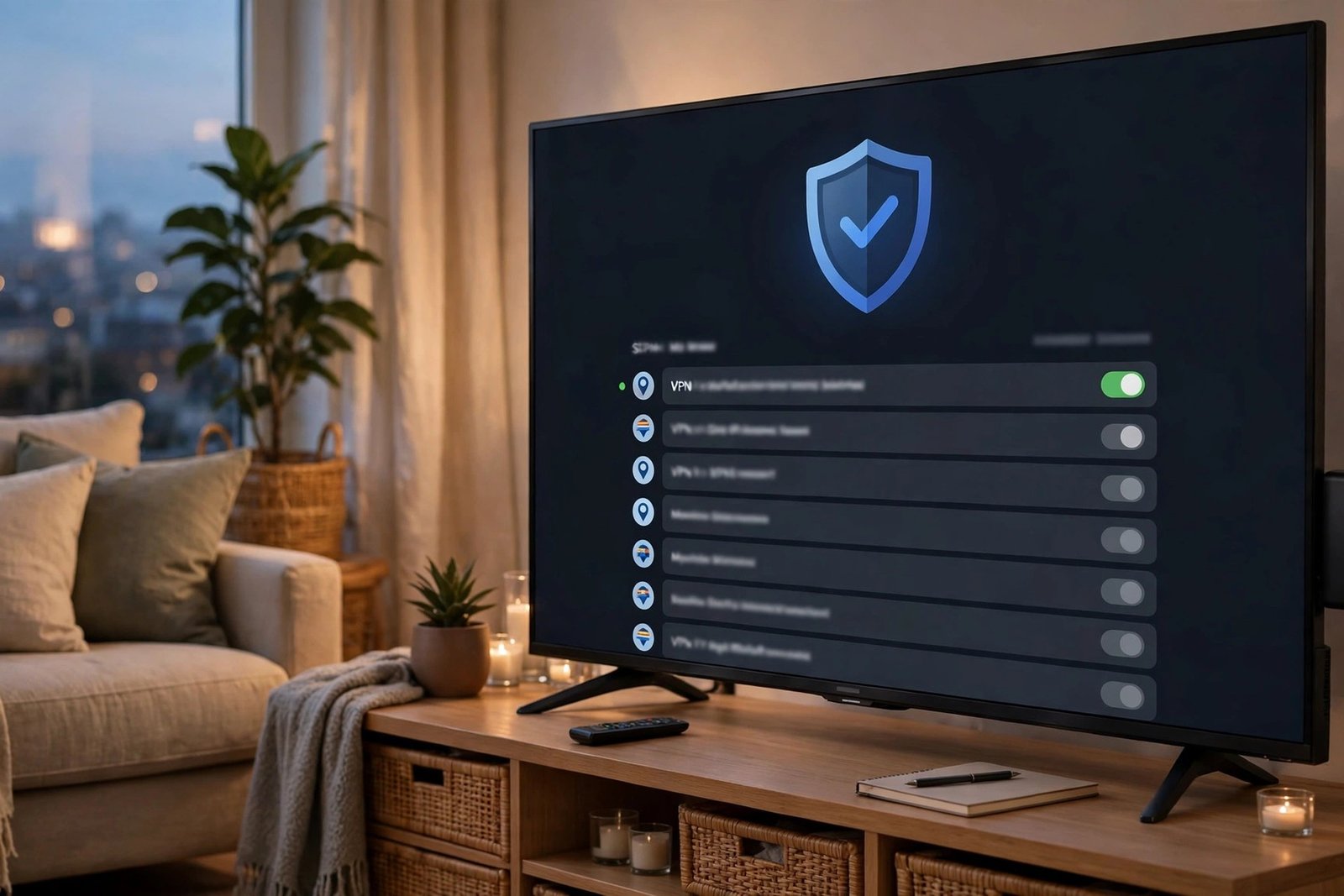
The Amazon Fire TV Stick turns any television into a streaming hub, and it is natural to want a VPN on it: to keep your viewing habits private from your internet provider, to stay safer on shared networks, and to understand what streaming apps are doing with your data. Search for a free VPN for Firestick, though, and you will find dozens of unknown apps promising unlimited everything at no cost. Some free VPNs are legitimate starter plans from reputable companies. Others are data-harvesting traps. This guide explains the difference, what a free VPN can realistically do on a Firestick, and how to install one safely.
What a VPN on a Firestick Actually Does
A VPN (virtual private network) creates an encrypted connection between your Firestick and a server run by the VPN company. Your streaming traffic travels through that tunnel, so your internet service provider can see that you are connected to a VPN, but not which apps you are using or what you are watching. Websites and apps see the VPN server’s location instead of your home connection.
On a Firestick, a VPN is mainly a privacy tool. It is not a magic upgrade: it will not make a slow broadband line faster (encryption usually costs a little speed), it will not make paid streaming services free, and using one to bypass another service’s terms is a separate question from whether the VPN itself works. What it does well is reduce tracking, add security on networks you do not control, and give you a choice of server locations for services you are entitled to use.
Can a Free VPN Work Well on Firestick?
Yes — within limits. Trustworthy free VPNs are almost always the free tier of a paid product. The company uses the free plan as a sample, hoping you will upgrade, which means the free plan is deliberately restricted. Typical limits include:
- Data caps — often a few gigabytes a month, or a daily allowance. Streaming video uses roughly 1GB per hour at standard definition and much more in HD, so a capped plan can run out in a single film.
- Fewer server locations — free plans usually offer a handful of countries, and the servers are busier, so speeds vary.
- One device at a time — the free account usually covers a single connection.
- No streaming guarantees — free servers are the first to be blocked by streaming platforms, and providers rarely promise otherwise.
For occasional private browsing, testing whether a VPN suits you, or light use of non-video apps, a reputable free plan is enough. For regular HD streaming, most people hit the data cap quickly — which is exactly what the provider intends.
The Safety Checks That Matter Most
A VPN sees your traffic, so choosing one is a trust decision. Free makes that decision more important, not less, because a service with no paying customers still has servers to fund — and if it is not funded by subscriptions, it may be funded by advertising or by your data. Before installing any free VPN on a Firestick, check:
- Who is behind it? A named company with a real website, a support channel and other paid products is a far better sign than an anonymous app with only a store listing.
- What does the privacy policy say? Look for a clear no-logs commitment — no record of your activity or connection history. Vague wording like “we may collect usage data to improve our service” deserves suspicion.
- Is it in the official Amazon Appstore? Installing from the official store means the app passed Amazon’s review. Avoid downloading VPN apps from random websites or video tutorials — modified APK files are a common route for malware on Fire TV devices.
- What permissions does it ask for? A VPN needs network permissions. It does not need your contacts, your files or access to unrelated parts of the device.
- How intrusive is the advertising? Occasional upgrade prompts are normal on a free tier. Constant pop-ups, or ads injected into other apps, are a warning sign.
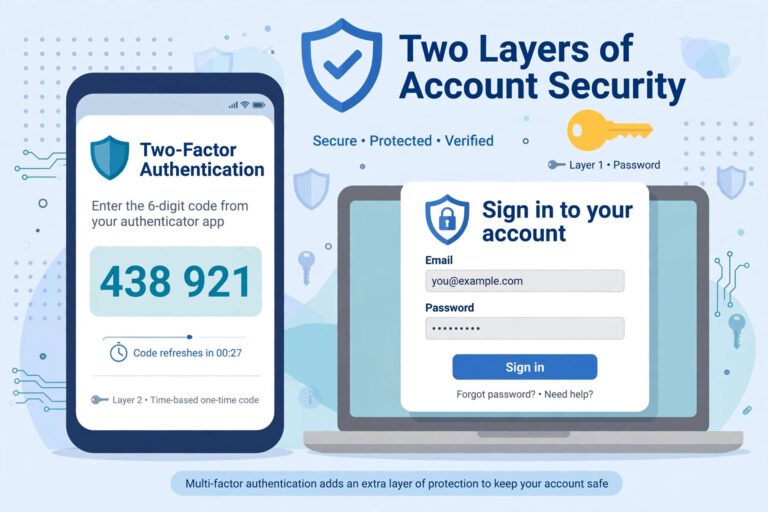
However you sign up, protect the account itself: use a unique password you do not reuse anywhere else. A password manager makes that easy, and it matters because your VPN account controls a service that sits between you and everything you stream.
How to Install a Free VPN on Firestick
For any reputable provider, installation takes about five minutes and needs no technical tricks:
- Step 1: From the Firestick home screen, go to Find, then Search, and type the VPN’s name.
- Step 2: Select the official app from the Amazon Appstore and choose Download or Get. Check the developer name matches the company you researched.
- Step 3: Open the app and sign up for the free plan. Use an email address you check regularly and a unique password.
- Step 4: When the app asks permission to create a VPN connection, allow it — this is the system prompt every genuine VPN needs.
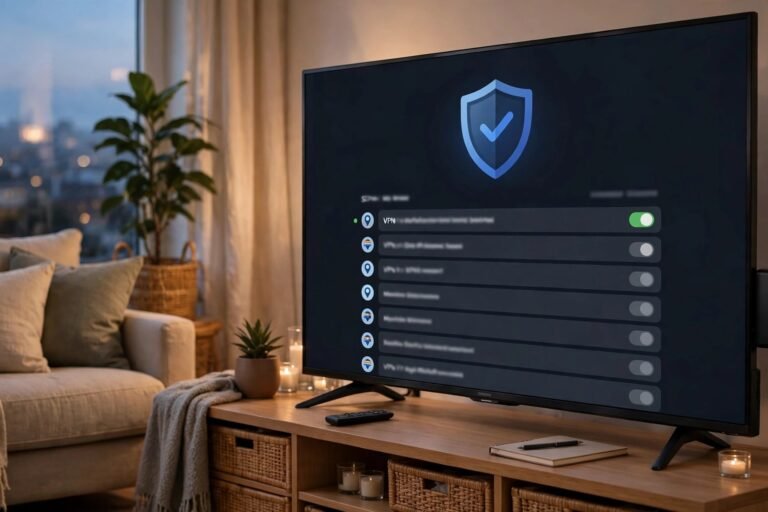
- Step 5: Choose a server location and tap Connect. Most apps show a clear connected state and your new apparent location.
- Step 6: Press Home and open your streaming or browsing app as normal. Your traffic now runs through the VPN until you disconnect.
Two useful settings to look for afterwards: an auto-connect option, so the VPN starts with the Firestick, and a kill switch, which blocks traffic if the VPN connection drops so your real connection is not exposed silently. Not every free plan includes both, but they are worth enabling when offered.
Free VPNs to Be Careful With
Be wary of any free VPN that promises unlimited data, top speeds, every country and no adverts, forever, from a company you have never heard of. Running a VPN network costs real money; if the offer sounds impossible, your data or your attention is usually the product. Other red flags include apps that ask you to install a separate “configuration profile” from a website, apps with no privacy policy at all, and store listings copied word-for-word from a well-known brand under a slightly different name. Deleting a suspicious app is easy: hold the Home button, open your apps list, and uninstall it — then change the password of any account you signed into while it was installed.
Free vs Paid VPN for Firestick: When to Upgrade
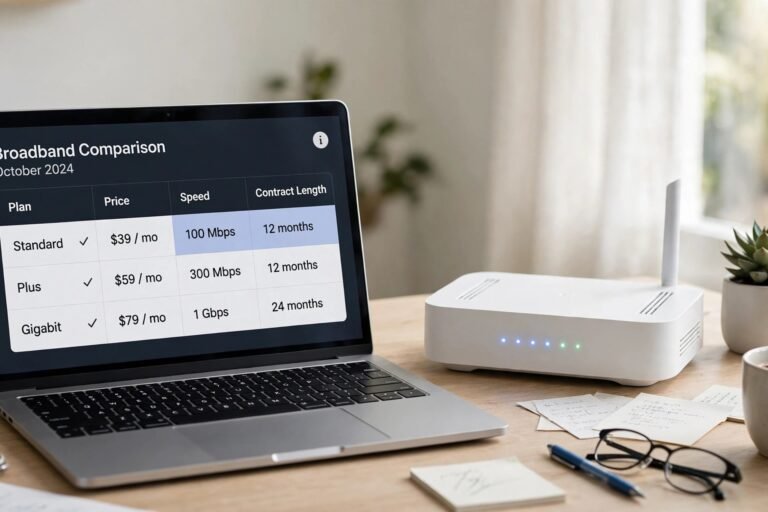
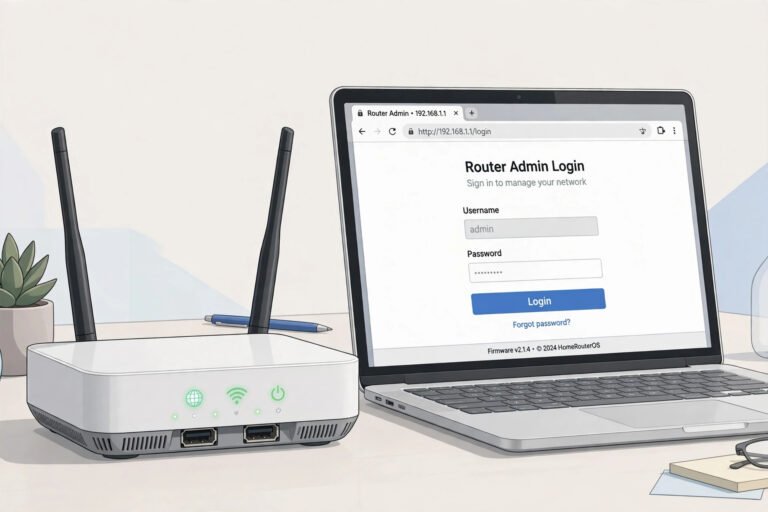
A paid plan typically removes the data cap, unlocks every server location, allows several devices on one account, and adds features such as split tunnelling (choosing which apps use the VPN) and priority support. As a rough guide: stay free if you only want occasional privacy for light app use or you are testing a provider. Consider paying if you stream video through the VPN most evenings, if free servers keep buffering, or if you want the same account protecting your phone and laptop as well. One alternative for whole-home coverage is running a VPN on your router instead, so every device — including the Firestick — is covered at once; if that interests you, our guide to logging in to your router admin page is the first step. Note that most free plans do not support router installations, so that route usually means a paid account.
Frequently Asked Questions
Is it legal to use a free VPN on a Firestick in the UK?
Yes. VPNs are legal in the UK, and so is installing one on your own Fire TV Stick. What you do with it still has to follow the law and the terms of the services you use.
Will a free VPN slow down my Firestick?
A little slowdown is normal because your traffic is encrypted and routed via an extra server. On free plans the bigger issue is usually crowded servers, which can cause buffering at busy times of day. Connecting to a nearer server location usually helps.
Why does my free VPN keep running out of data?
Video is heavy: roughly 1GB per hour at standard definition, and several times that in HD or 4K. A free plan with a monthly cap of a few gigabytes can be used up by one or two films, which is why free tiers suit light use rather than nightly streaming.
Can I install a VPN that is not in the Amazon Appstore?
It is technically possible to sideload apps on a Firestick, but for a VPN — an app that handles all your traffic — the risk is not worth it. Stick to providers with an official Appstore listing so you know the app is the genuine one.
Conclusion
A free VPN for Firestick can be a sensible, safe starting point — as long as “free” means the starter tier of a real company, not an anonymous app promising the impossible. Check who runs it, read the privacy policy, install only from the Amazon Appstore, and expect a data cap that suits testing and light use rather than nightly HD streaming. If you outgrow the free plan, you will already know the app works on your Firestick and your network, which makes any upgrade a decision based on experience rather than guesswork.
About the Author