If you have tried to change your wifi name or password, you have probably seen the address 192.168.l.l written in guides and forums. There is a catch: that address, typed exactly like that, will never work. This guide explains why, what the correct address is, and walks you through logging in to your router’s admin page step by step — including what to do when the page refuses to open and how to secure your router once you are in.
What Is 192.168.l.l, Really?
192.168.l.l is a common mis-typing of a router’s private IP address. IP addresses are made of numbers separated by dots — but in “192.168.l.l” the last two characters are the letter “l” (as in “login”), not the number “1”. People read or copy the address wrongly, browsers cannot resolve it, and the search ends in an error page instead of a router login.
The address most of those guides actually mean is 192.168.0.1 — all numbers. A very close relative, 192.168.1.1, is used by many other brands. You may also see 192.168.01 written in forums; that is simply 192.168.0.1 with an extra zero, and it points to the same place. These are private addresses: they exist only inside your home network, which is why the same address works in millions of homes without clashing with the public internet.
Which Address Does Your Router Use?
- 192.168.0.1 — common on TP-Link, D-Link, Netgear and many ISP-supplied routers.
- 192.168.1.1 — common on Linksys, ASUS and some Netgear models.
- 192.168.1.254 — used by BT Smart Hub and some other UK ISP routers (BT also offers a shortcut address through its hub manager).
- 192.168.8.1 — common on Huawei routers and mobile broadband devices.
If you are not sure, the surest source is the label on the router itself: most manufacturers print the admin address (sometimes shown as a web address such as tplinkwifi.net or routerlogin.net) next to the default login details. You can also find it from a connected computer: on Windows, open Command Prompt, type ipconfig and look for “Default Gateway”; on a Mac, open System Settings, go to Wi-Fi, click Details next to your network and look for “Router”. That gateway address is your router’s login address.
How to Log In to Your Router, Step by Step
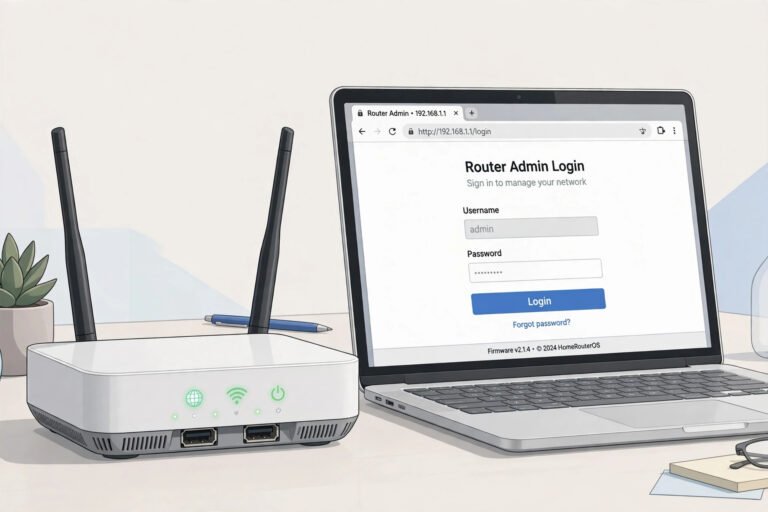
- Step 1: Connect to the router. Join its wifi network or, more reliably, plug in an ethernet cable. You must be on the router’s own network — the admin page cannot be reached from the internet.
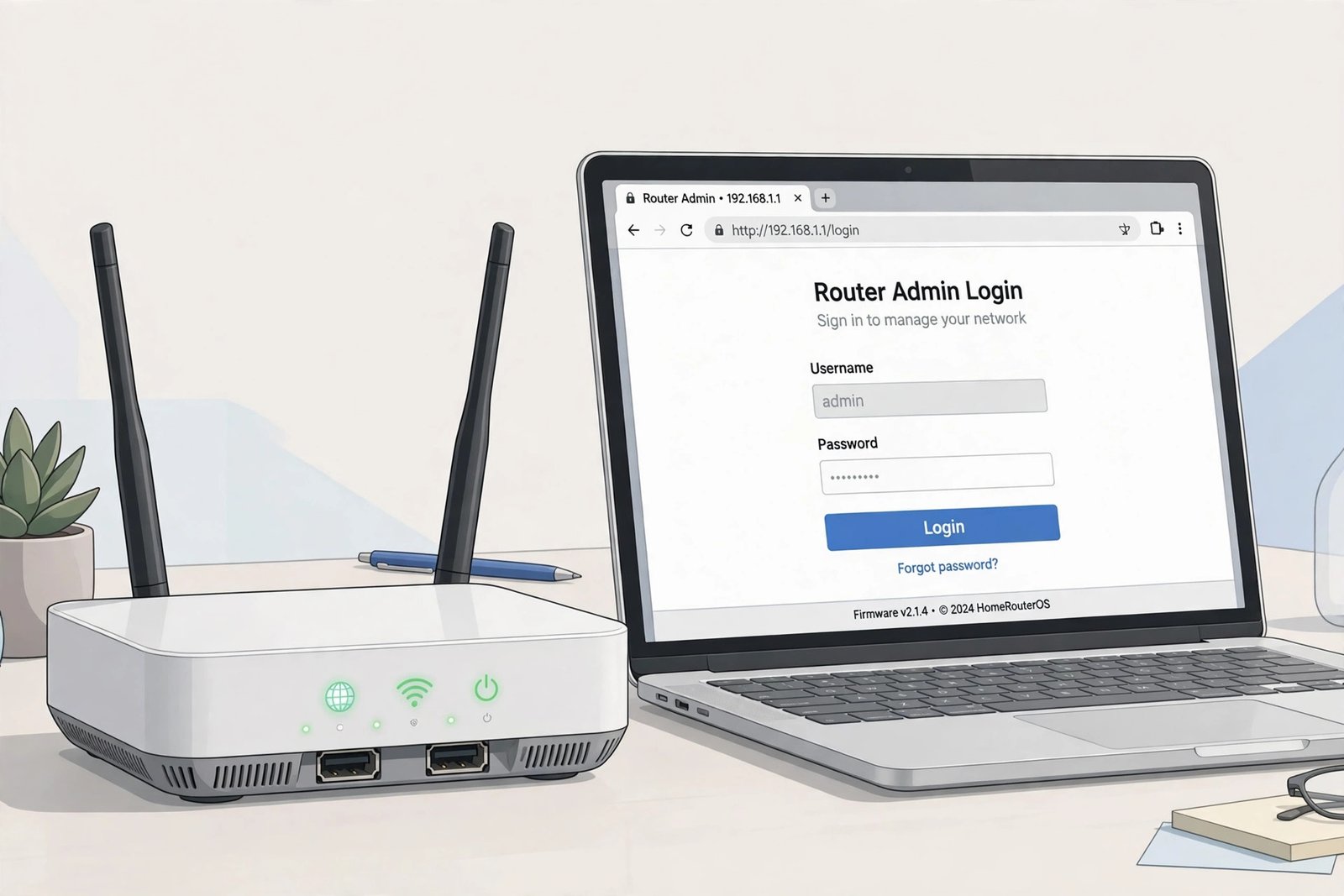
- Step 2: Open a browser and type the address. Use the address bar (not a search engine), type http://192.168.0.1 — or your model’s address from the list above — and press Enter. Ignore browser warnings about the connection not being private on this page; for a local router page over HTTP this is expected, though some newer routers use HTTPS.
- Step 3: Enter the admin username and password. These are the router’s own admin details, printed on its label — not your wifi password, although on some ISP routers the two are the same until you change them.
- Step 4: You are in. The admin dashboard lets you change the wifi name (SSID) and password, update firmware, set up guest networks and parental controls, and see which devices are connected.
Default Usernames and Passwords
Factory defaults vary by brand. Common combinations include admin / admin, admin / password, and admin with the password printed on the label. Many modern routers — especially UK ISP hubs from BT, Virgin Media, Sky and TalkTalk — use a unique admin password printed on a sticker or pull-out card, which is much safer than a shared default.
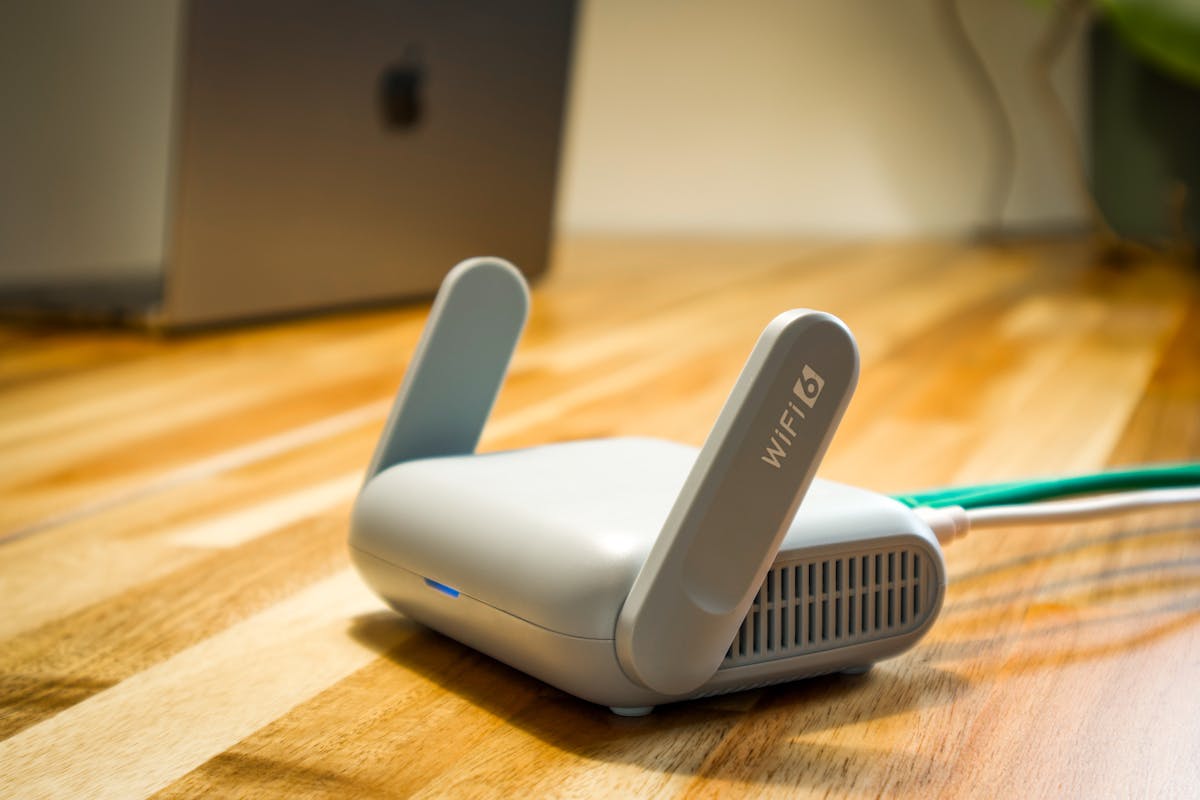
If the defaults do not work, the admin password has probably been changed before — by you, a family member, or whoever installed the router. The fallback is a factory reset: with the router powered on, press and hold the small reset button (often inside a pinhole) for about 10–30 seconds until the lights change. Be aware that a reset wipes your wifi name, password and any custom settings, so you will need to set the router up again from the defaults on its label, and reconnect your devices.
When the Login Page Will Not Open
- You typed 192.168.l.l with letters: Use digits only — 192.168.0.1 or 192.168.1.1.
- You searched instead of typing the address: Make sure the address goes in the browser’s address bar and starts with http:// — a search results page will never log you in.
- You are on the wrong network: Disconnect from VPNs, mobile data and any other wifi network, and connect only to the router you want to manage.
- The address is different: Check the router label or the Default Gateway / Router value on your computer, as described above.
- The page times out: Restart the router, wait two minutes for it to fully boot, and try again — ideally over a cable.
- Your browser blocks it: Try a different browser, or clear the cache. On HTTPS warnings for the local page, choose the option to proceed to the site.
Change These Settings Once You Are In
Logging in is also your chance to close the security gaps most home networks live with:
- Change the admin password. If it is still the factory default, anyone on your network — including malware on a compromised device — can take over the router. Set a long, unique one and store it in a password manager so it is not lost or reused.
- Update the wifi password and encryption. Use WPA2 or WPA3 security with a strong wifi password; avoid the old WEP and WPA options entirely.
- Update the firmware. Router updates fix real security flaws. Many routers can check for updates from the admin page, and some update automatically overnight.
- Turn off WPS and remote management unless you actively need them — both have a long history of being abused.
- Set up a guest network for visitors and smart-home gadgets, keeping your computers and phones on the main network.

Frequently Asked Questions
Why does 192.168.l.l not work?
Because it contains the letter “l” instead of the number “1”. IP addresses use numbers only. The address you almost certainly want is 192.168.0.1 or 192.168.1.1, depending on your router brand.
Is 192.168.0.1 the same as 192.168.01?
Yes. 192.168.01 is just an informal way of writing 192.168.0.1 and reaches the same router login page.
What is the difference between the admin password and the wifi password?
The wifi password lets devices join your network. The admin password lets you change the router’s settings. They are sometimes the same on ISP routers at first, but they should be different — and the admin password is the one attackers want.
Can I log in to my router from my phone?
Yes. Connect the phone to the router’s wifi, open its browser and type the same address. Many brands also offer an app, but the browser method works on almost every router.
Is it safe to log in to 192.168.0.1?
Yes — it is an address inside your own home network, not a public website, so only devices already connected to your network can reach it. That is also why keeping a strong admin password matters.
Conclusion
The mystery of 192.168.l.l has a simple answer: it is a typo, and the real keys to your router are 192.168.0.1 and 192.168.1.1. Connect to your network, type the correct digits into your browser’s address bar, and sign in with the details on the router’s label. While you are there, change the default admin password, check your wifi security is WPA2 or WPA3, and let the firmware update. Ten minutes in the admin page makes your whole home network noticeably safer.
For stronger account security on the services behind your network, also read our guide to two-factor vs two-step verification.
About the Author