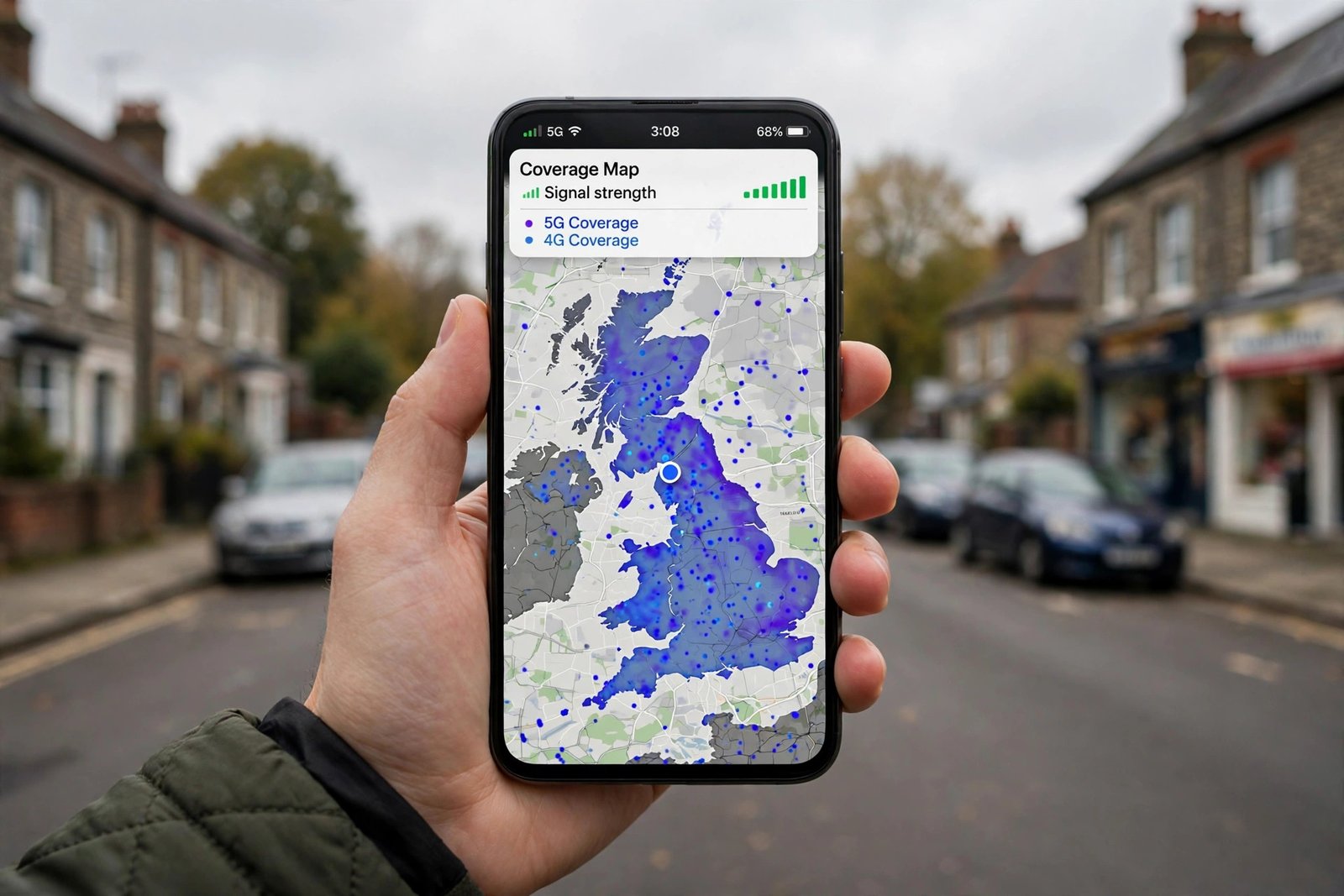
Before you sign up for a new mobile plan, move house, or start blaming your phone for dropped calls, it is worth checking what coverage you can actually expect where you live, work, and travel. An EE signal checker is the tool for that job: it lets you look up predicted EE mobile coverage for a postcode or a place, so you can see whether EE is likely to serve that area well before you commit to anything. Used properly, it takes a few minutes and can save a great deal of frustration later.
This guide explains what an EE signal checker is, how to use one, how to read the results without over-trusting them, and what to do when the result does not match the signal you actually get. It also covers the everyday reasons signal varies from street to street and room to room, and the practical fixes that help most when your signal is weak at home.
What Is an EE Signal Checker?
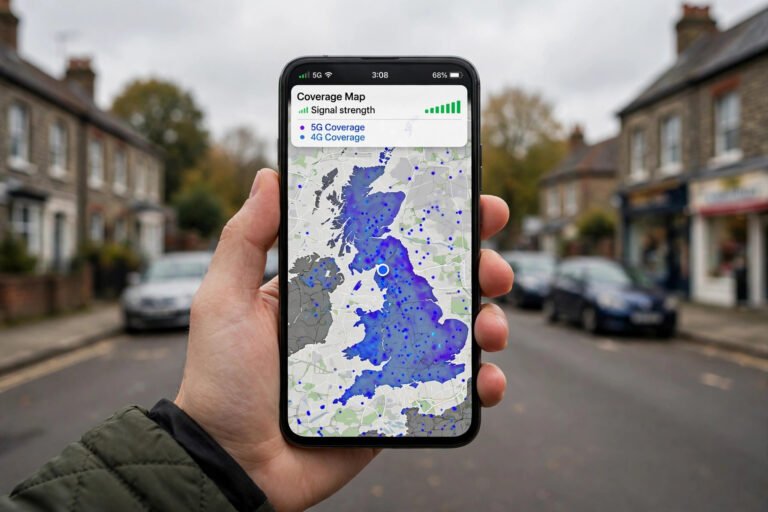
An EE signal checker, often called a coverage checker, is an online tool that shows predicted mobile coverage on a map or for a specific address. You enter a postcode or a place name, and the tool shows whether EE coverage is predicted there, and what kind of connection is expected — for example, whether the area is served by the older, widely available network generations or by newer, faster ones, and whether coverage is predicted indoors as well as outdoors.
The important word here is predicted. A coverage checker is a model built from mast locations, terrain, and network planning data. It is a very useful starting point, but it is not a guarantee for your exact house, your exact phone, or the exact moment you try to make a call. Think of it as a weather forecast for signal: broadly reliable, sometimes wrong in a particular spot, and always worth combining with a real-world check where you can.
EE is one of the UK mobile networks with its own masts and infrastructure, and it also carries customers of other brands that run on its network. A checker result for EE therefore tells you something useful even if your current deal is with a different brand that uses the same network — the underlying coverage picture will be similar, although the plan, the customer service, and any extras will differ.
How to Use an EE Signal Checker, Step by Step
Checking coverage takes only a few minutes. The exact layout of the tool changes from time to time, but the steps stay much the same:
- Open the official coverage checker. Use the checker provided by EE itself rather than a third-party copy, so you are looking at the network’s own current prediction rather than an older or estimated version.
- Enter a full postcode. A full postcode gives a far more useful result than a town name, because coverage can change noticeably within a single neighbourhood. If you are checking a future home, use its exact postcode; if you are checking a workplace or a regular route, check each place separately.
- Look at both indoor and outdoor predictions. Many checkers let you switch between outdoor coverage and the coverage expected inside buildings. This matters, because a place with good outdoor coverage can still have patchy indoor coverage, especially in thick-walled or basement rooms.
- Check each network generation separately. Look at what is predicted for the widely available connection type as well as for the newer, faster type, so you know whether you are getting basic coverage, a solid everyday connection, or the fastest available service at that address.
- Check more than one place. Run the checker for your home, your workplace, and anywhere else you spend a lot of time. A network that is excellent at home but weak where you work may still be a poor fit for your daily life.
- Note the result, then test it in real life if you can. If you know someone on EE, ask how their phone performs at the same address. A short real-world test tells you what the model cannot: how signal behaves in your particular building, on your particular handset, at busy times of day.

How to Read the Results Without Over-Trusting Them
Coverage results are usually shown in broad bands rather than precise promises: good coverage, variable coverage, or limited coverage, for example, sometimes with separate shading for indoor and outdoor predictions. A strong result means the network expects a reliable connection in that area in most conditions. A variable result means coverage is present but may depend on your exact position, your phone, and the time of day. A limited result means you should expect patchy service or none at all, and you should think carefully before relying on that network at that address.
It is also important to separate coverage from speed. Having a signal does not automatically mean a fast connection. The checker may show that an area is covered, while the actual speed you experience depends on how busy the local mast is, how many people are using it at the same time, what your phone supports, and whether you are indoors or outdoors. If you need a connection for video calls or heavy use, coverage alone is not enough information — you need to know how the connection performs in practice.
Finally, remember that the checker shows the network as it is modelled, not as it will be forever. Networks are upgraded, new masts are added, and local building work can change the picture over time. If you checked an address months ago and your experience has changed since, it is worth running the checker again rather than assuming the old result still holds.
Why Your Signal Can Differ From the Checker Result
It is common for a phone to show a weaker signal than the checker suggested, or occasionally a stronger one. Neither result necessarily means the checker is broken. Mobile signal is affected by distance from the nearest mast, by the ground between you and that mast, and by everything in between. Hills, dense building, thick walls, metal-framed structures, and basement or underground rooms can all weaken a signal before it reaches your phone.
Your phone itself plays a part too. Different handsets have different aerial designs, and an older phone may not support the newest network features that a newer phone in the same spot can use. A damaged phone, a phone in a thick metal case, or a phone with a faulty SIM can all show poor signal for reasons that have nothing to do with the network. If everyone around you has a usable signal and you do not, the phone or the SIM is a sensible place to look first.
Time of day matters as well. Mobile masts serve everyone in their area, so a mast that feels fast and reliable early in the morning can feel slower at busy times, such as during a major event, in a crowded town centre, or on a packed train. That congestion affects speed more than it affects the basic ability to make a call, but it is a real part of everyday mobile experience and one reason a single test at a quiet moment can flatter a network.

Signal Bars Are Not the Whole Story
Most people judge signal by the bars on their phone, but bars are a rough guide, not a measurement. Different phones display bars differently, so two phones standing side by side can show a different number of bars on the same network. Bars also tell you about the strength of the connection to the mast, not about how fast data will flow or how busy that mast is.
A better everyday test is simply how the phone behaves: do calls connect promptly, do they stay connected as you move around the house, do messages send without delay, and do web pages and maps load at a usable pace? If those things work reliably, the exact number of bars matters very little. If they do not, a low bar count is a clue, but the fix depends on the cause — which is why the sections below start with the simplest checks before moving to bigger changes.
It is also worth checking whether the problem is specific to one place or follows you everywhere. Signal that is poor only at home points to the building, the local mast, or your home setup. Signal that is poor everywhere points more towards the phone, the SIM, or the account itself, and is worth raising with the network directly rather than trying to fix at home.
What to Do If Your EE Signal Is Weak at Home
Start with the free and simple steps. Move to a different room, ideally near a window and on the side of the house facing the nearest mast, and see whether calls and data improve. Take the phone out of a thick or metal case for a test. Restart the phone, which forces it to reconnect to the network afresh. Check that the phone is set to choose the network automatically rather than being locked to a single network type, and make sure software updates are installed, since updates can include improvements to how the phone handles the network.
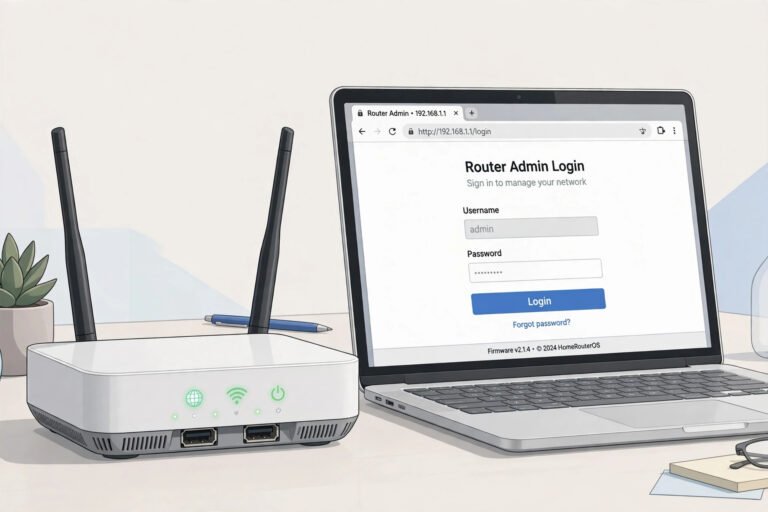
Next, check whether wifi calling can carry the load at home. Wifi calling lets your phone make and receive calls and texts over your home wifi connection when the mobile signal is weak, using your normal number. If your phone and plan support it, turning it on can transform a house with poor mobile signal into a house where calls work perfectly, without any new equipment. To adjust your home network settings, log in to your router admin page.
If the phone works well on wifi but mobile signal remains poor throughout the house, consider whether the issue is the handset or the SIM. Try the SIM in another phone if you can, or try another SIM in your phone, to narrow down which one is at fault. A damaged or very old SIM can cause intermittent problems that look like network trouble. If the fault follows the SIM, a replacement SIM from the network is usually straightforward to arrange.

When Mobile Signal Is Not the Right Tool for the Job
There are homes and situations where mobile signal, however good the checker result, is simply not the best everyday connection. A household where several people work from home, join video calls all day, and stream on multiple screens at once will usually be better served by a fixed home broadband connection, with mobile data as a backup rather than the main connection. The same applies to a home in a valley or a heavily shielded building where indoor mobile coverage is consistently poor despite good outdoor predictions.
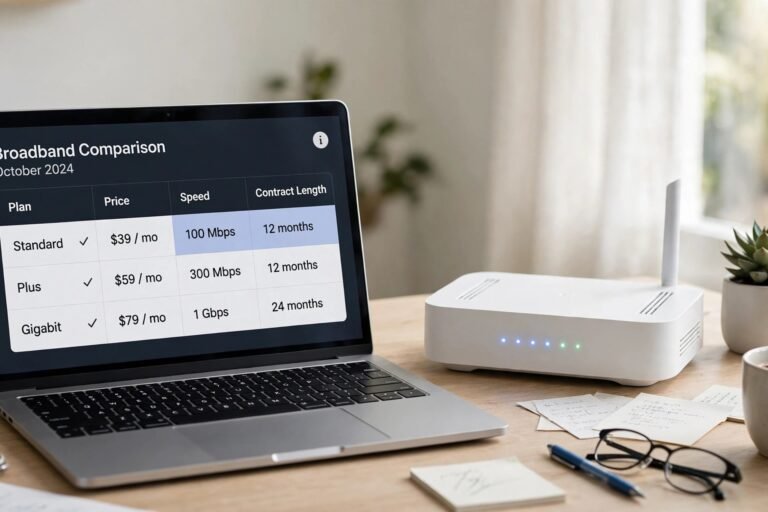
In that situation, the question changes from which mobile network is best to which home connection suits the household, and it is worth comparing home options on their own terms. You can start by comparing current broadband offers. A home connection and a mobile plan are not rivals: for many households, the sensible setup is a solid home connection indoors and a mobile plan that covers the journeys and places in between.
If you are choosing a mobile network for a new home and the checker shows weak results for every network at that address, raise it before you move if you can. Ask the seller or landlord about their experience, check whether neighbours report the same problem, and confirm whether wifi calling or a home broadband connection already solves it for them. That kind of local knowledge often matters more than any map.
Checking Signal on the Move and When Travelling
An EE signal checker is just as useful for journeys as for a single address. If you commute by train, drive a regular rural route, or spend weekends in the same part of the countryside, check coverage along that route rather than only at the two ends. Rural roads, valleys, and stretches between towns are where coverage gaps are most likely, and knowing about them in advance helps you download maps, music, and messages before you set off rather than discovering the gap halfway through a journey.
When travelling within the UK, remember that coverage can change quickly as you move between towns, and that a phone will sometimes cling to a distant, weak mast for a while before switching to a nearer one. If you lose signal on a journey and it does not return, toggling the phone’s flight mode on and off forces it to search again, which often restores a connection faster than waiting. If signal regularly disappears on the same stretch of road, that is useful information to feed back to the network, and a pattern worth noting if you are comparing networks for a future switch.
Frequently Asked Questions
Is an EE signal checker the same as the bars on my phone?
No. The checker shows predicted coverage for an area, while the bars on your phone show the live connection of that particular handset in that particular spot. The checker is best for comparing areas before you commit, and the bars — together with how calls and data actually behave — are best for judging your everyday experience.
Can I check EE signal for an address I do not live at yet?
Yes. You only need the postcode, so you can check a future home, a workplace, a university address, or a holiday cottage before you arrive. Checking several postcodes gives a better picture than a single result, especially if you will spend time in more than one place.
Why does my phone show good signal outdoors but poor signal indoors?
Building materials weaken mobile signals, and the effect varies by building. Thick stone walls, metal framing, energy-efficient glazing, and basement rooms all reduce indoor signal more than a timber-framed house or a room with a clear view towards the mast. Wifi calling at home is often the simplest answer to this particular problem.
What should I do if the checker says coverage is good but my signal is poor?
Work through the simple checks first: restart the phone, test without a thick case, test in a different room, and try the SIM in another phone if possible. If the problem persists in one place for everyone on the network, report the location to EE so it can be investigated. If it follows your phone everywhere, the handset or SIM is the more likely cause.
Conclusion
An EE signal checker is a quick, free first step that answers the most important question about any mobile network: is it likely to work where you actually spend your time? Enter a full postcode, look at indoor and outdoor predictions separately, check every place that matters to you, and treat the result as a strong guide rather than a promise. Then back it up with real-world experience wherever you can, use wifi calling to bridge any indoor gaps at home, and judge the network by how reliably calls connect and data flows, not by the number of bars on the screen. Checked that way, the checker does exactly what it is for: it stops you discovering a coverage problem only after you have already signed up.
About the Author