If your video calls freeze, your streams buffer, or your downloads crawl, the first question worth asking is a simple one: what speed is your connection actually delivering right now. A free test speed check answers that question in under a minute, using nothing more than a browser and a connection to test. It measures how fast data travels to your device, how fast it travels back, and how quickly your connection responds, and those three numbers tell you far more than a vague feeling that the internet is slow. This guide explains how to run a free speed test properly, what each result means, and how to make sure the numbers you get are a fair reflection of your connection rather than a quirk of how you tested it.
It is worth being clear about what a speed test is and is not. It is a snapshot of your connection at a particular moment, on a particular device, through a particular route to a test server. It is not a permanent rating of your broadband, and it is not a verdict on your provider in isolation, because your home wifi, your device, and what else is happening on your network all affect the result. Used properly, though, a speed test is one of the most useful diagnostic tools available to an ordinary internet user, because it turns a complaint into a number, and a number into a next step.
What a Free Speed Test Actually Measures
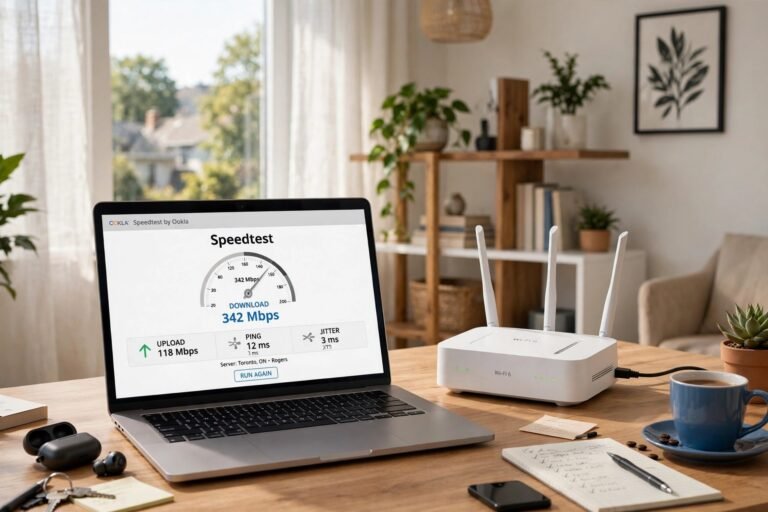
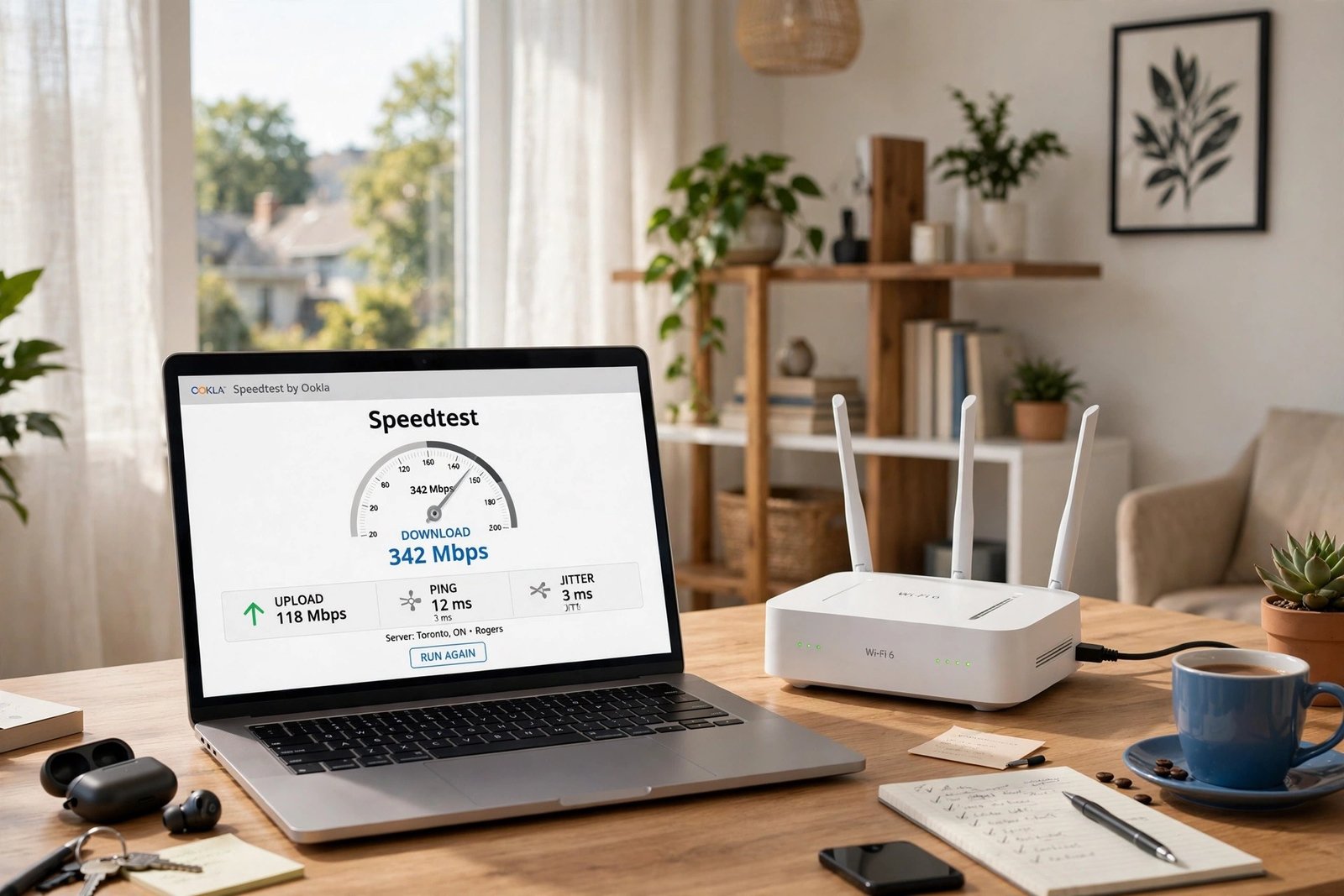
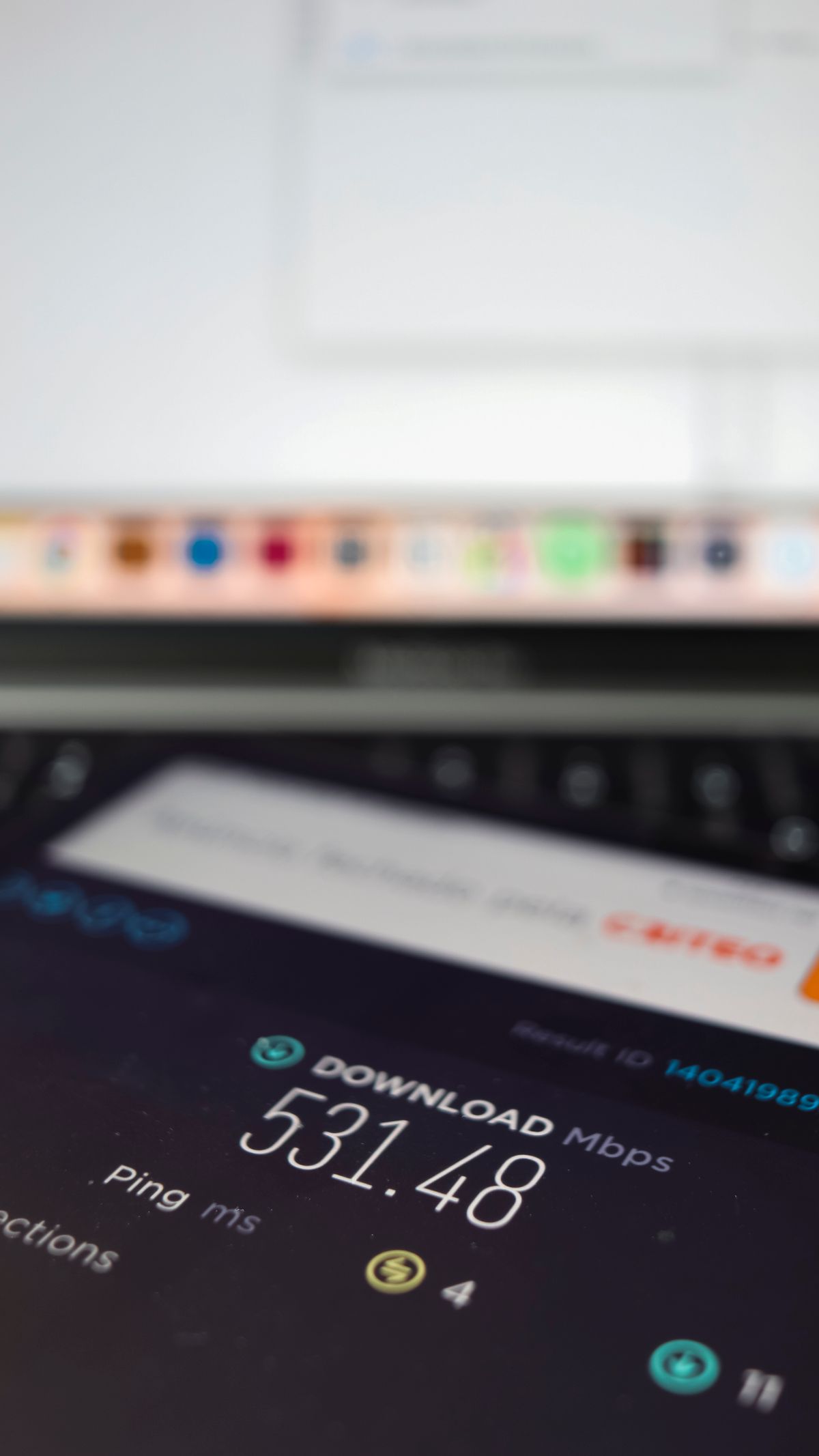
The headline figure in most speed tests is download speed, which measures how quickly data travels from the internet to your device. This is the number that matters most for the activities most people do every day: streaming video, browsing the web, downloading files, updating apps and loading pages. It is usually expressed in megabits per second, and a higher download figure generally means pages load faster, streams start sooner, and large downloads finish sooner. When people say their internet is slow, they usually mean that the download speed feels too low for what they are trying to do.
Upload speed measures the reverse journey: how quickly data travels from your device to the internet. It matters less for browsing and streaming, but it matters a great deal for video calls, live streaming, sending large files, backing up photos and videos to the cloud, and playing online games that constantly send data about your actions. Many home connections are deliberately asymmetric, offering much faster downloads than uploads, because most household activity is download-heavy. That is normal, but it means that a connection can feel perfectly fast for streaming while struggling on video calls, and only an upload measurement reveals why.
Ping, also called latency, measures responsiveness rather than speed. It is the time taken for a small packet of data to travel to a server and back, usually expressed in milliseconds, and a lower figure is better. Ping is what makes a connection feel snappy or sluggish in real time: it affects how quickly a web page starts loading after you click, how responsive an online game feels, and whether voices on a video call talk over each other. A connection can have a high download speed and still feel unresponsive if its ping is high, which is why a good speed test always reports latency alongside download and upload figures.
Some tests also report jitter, which is the variation in ping over time. A connection with a steady ping feels smooth, while a connection whose ping jumps around can produce stuttering video calls and uneven gaming even when the average ping looks acceptable. Jitter is a useful clue when a connection feels inconsistent: fast one minute and poor the next, or fine for browsing but unreliable for live calls. Not every free test reports jitter, but when one does, a low and steady figure is a sign of a healthy, stable connection.
How to Run a Free Speed Test Properly
Running a speed test is easy, but running one that gives a trustworthy result takes a little care. Start by closing or pausing anything else that uses your connection: streaming services, large downloads, cloud backups, app updates and video calls all consume bandwidth and will drag the result down. If other people in your household are streaming or gaming, your test will measure the speed left over after their activity, not the full capacity of your connection, so for a baseline measurement, test when the network is as quiet as you can make it.
Where possible, test over a wired connection first. An ethernet cable between your device and your router removes wifi from the equation, so the result reflects your broadband connection itself rather than the quality of your wireless signal. If a wired test looks healthy but a wifi test in another room looks poor, you have learned something valuable: the problem is likely your wifi coverage rather than your broadband. If both tests look poor, the issue is more likely to be the connection itself, and that distinction shapes everything you do next.
Choose your device sensibly as well. An older phone or an ageing laptop may not be able to use the full speed of a fast connection, especially over wifi, and a test run on such a device can understate what your broadband is actually delivering. Where you can, test on a reasonably modern device, keep its software up to date, and close unnecessary browser tabs and background apps before you start. The browser you use matters less than the device and the connection, but an up-to-date browser with no heavy extensions running is the safest choice for a clean result.
Finally, do not rely on a single test. Speed varies by time of day, by the test server chosen, and by temporary congestion on the wider internet, so one low result at a busy evening hour does not prove a fault, and one excellent result at a quiet hour does not prove everything is fine. Run the test two or three times, at different times of day, and look at the pattern. Consistent results across several tests are meaningful; a single outlier, in either direction, is usually not.
Understanding Your Results
Once you have a set of results, the question becomes what they mean for real life. For general browsing, email and social media, modest speeds are usually enough, and the connection will feel fine as long as latency is low and the speed is stable. Video streaming needs more, and the requirement grows with picture quality: standard definition video needs far less than high definition, which in turn needs far less than ultra-high-definition streaming, and a household where several people stream at once needs enough total capacity for all of them together, not just for one stream. Video calls sit in between, needing a solid upload speed as well as download, and they are particularly sensitive to latency and jitter, which is why a call can struggle even on a connection that streams video perfectly well.
Online gaming is the activity most sensitive to latency rather than raw speed. Most games use relatively little bandwidth, so a modest download speed is often plenty, but a high or unstable ping makes the game feel laggy and unresponsive in a way that no amount of download speed can fix. That is why gamers pay close attention to ping and jitter, and why a wired connection, which usually offers lower and steadier latency than wifi, is often preferred for competitive play. If gaming feels laggy while streaming feels fine, ping is the first figure to investigate, not download speed.
Working from home combines all of these demands at once. A video meeting needs upload and low latency, a shared document or cloud drive needs steady download and upload, and a household where a partner or children are also online adds further load. If your work calls freeze while nobody else is using the connection, check the upload figure and the ping before anything else, because those are the numbers that govern live, two-way communication. If the whole household struggles in the evening but mornings are fine, the pattern points towards total capacity and peak-time congestion rather than a single device or a single application.
It also helps to compare your results with what you expect from your connection, in general terms, rather than with a single advertised figure. Broadband advertising often describes a maximum or typical speed under ideal conditions, and real-world speeds vary with distance, technology, wiring and congestion. A result that is consistently and substantially below what your connection should deliver, across wired tests at quiet times, is worth investigating. A result that dips at peak hours but recovers at quiet times is more likely to reflect normal shared-network behaviour, and the practical response may be different: improving wifi, reducing simultaneous heavy use, or scheduling large downloads for quieter hours.
Why Results Differ Between Tests and Devices
One of the most confusing things about speed tests is that two tests run minutes apart can give quite different numbers, and a test on a phone can disagree with a test on a laptop in the same room. This is normal, and it has several ordinary explanations. Different test services use different servers, and the route your data takes to each server can differ in length and congestion. Different devices have different wifi capabilities, and a phone connected to a distant wifi signal will measure a lower speed than a laptop wired directly to the router, even though both use the same broadband. Background activity, from app updates to cloud photo syncing, can also change a result without any warning.
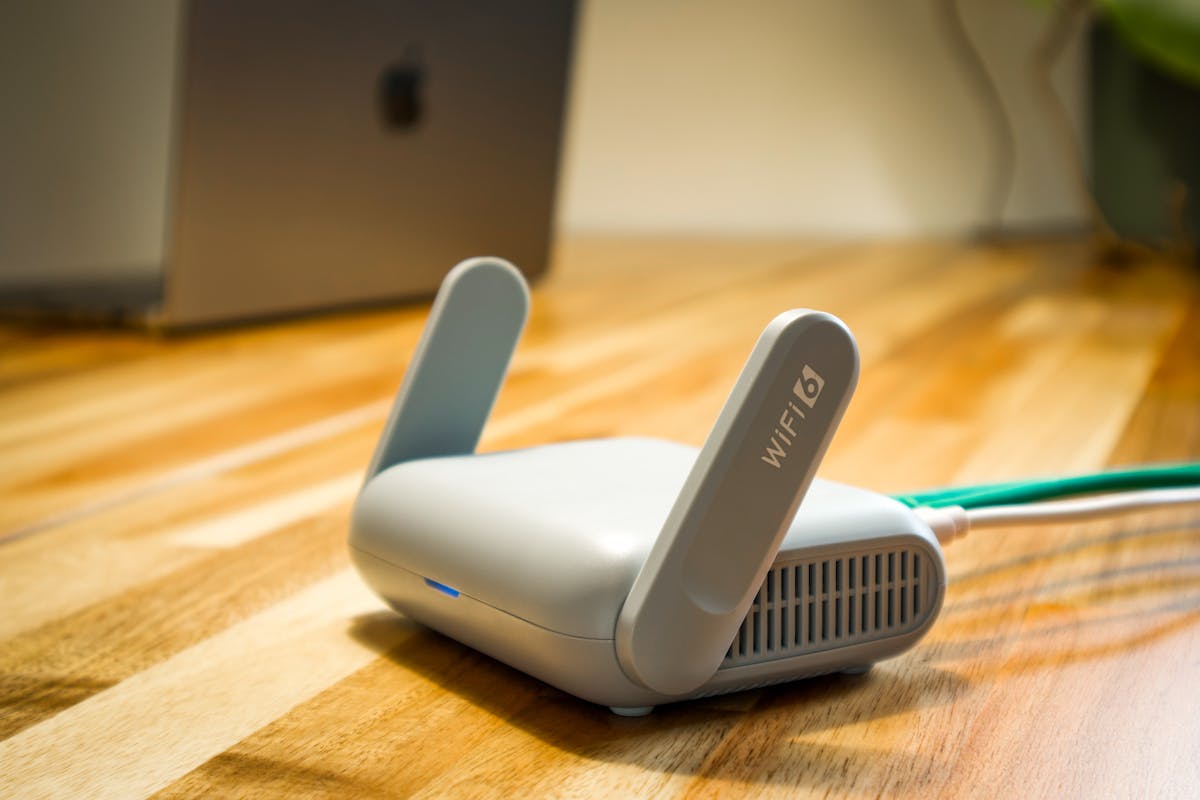
Wifi is the most common cause of variation, and it deserves a section of its own. Wifi speed falls with distance from the router, with walls and floors in between, and with interference from neighbouring networks, household electronics and even the building’s construction. A device in the same room as the router will usually test far faster than the same device two rooms away, and that difference is a property of the wireless signal, not of the broadband coming into your home. Moving closer to the router, changing the router’s position, or reducing interference can all improve wifi test results dramatically without any change to the broadband itself.
The age and condition of your equipment matter too. An old router may not support the wifi standards or the speeds that a modern connection offers, and a damaged or low-quality ethernet cable can limit a wired test just as surely as a poor wifi signal can limit a wireless one. If a wired test on a modern device with a good cable still looks poor, the evidence points more strongly towards the connection or the router’s configuration. If swapping the cable, the device or the location changes the result, the evidence points towards the equipment or the wifi, and the fix is likely to be local rather than something your provider needs to address.
Improving a Poor Result: A Sensible Order of Checks
When a speed test shows a disappointing result, it is tempting to jump straight to a complaint or a new purchase, but a short, systematic check usually finds the cause faster. First, repeat the test with a wired connection and a quiet network, as described above, to establish a baseline. Second, restart your router and your test device, because a restart clears temporary faults and stale connections that can quietly degrade performance over weeks of continuous running. Third, test in different rooms and on different devices, to separate a wifi problem from a broadband problem and a device problem from a network problem.
If the wired baseline is healthy but wifi is poor, the focus shifts to wireless coverage. Repositioning the router to a central, elevated, open location, away from thick walls, metal objects and other electronics, often helps. Reducing the number of devices competing for the same wifi signal at the same time, and moving stationary devices such as smart televisions or desktop computers onto a wired connection where possible, frees wireless capacity for the devices that genuinely need it. In larger homes, a single router may simply not cover every room well, and that is a coverage problem with local solutions rather than a broadband fault.
If the wired baseline itself is poor, the next checks are physical: the cables between your router and the wall socket, the condition of the socket and any filters or splitters in use, and whether the router’s lights or router’s status page indicate a connection problem. Try a different ethernet cable and, if you have one, a different port on the router, to rule out a faulty cable or port. If the problem persists across cables, devices and times of day, and a router restart has not helped, the evidence points towards the line or the provider’s network, and at that point a support conversation backed by your test results, including dates, times, wired figures and ping, will be far more productive than a complaint based on a single test alone.

Free Tests, Privacy and Choosing a Test Service
Most free speed tests are genuinely free and do not require an account, which is one of their strengths: you can run one in a browser in seconds, with no installation and no commitment. It is still worth choosing a reputable test service, because a test is only useful if its servers are well maintained and its measurements are honest. Well-known, long-established test services run by major measurement organisations or by large technology companies are a safer choice than obscure pages that may be more interested in advertising or data collection than in accurate measurement. If a test service asks you to install software or create an account before it will run a basic test, consider using a different service that runs directly in the browser.
Privacy is a modest but real consideration. A speed test necessarily learns your approximate location, in order to choose a nearby server, and your internet address, in order to run the test. Reputable services explain what they collect and how long they keep it, and most allow a basic test without personal details. There is no need to enter your name, address or account details to test a connection speed, and any service that demands them for a basic test should be treated with suspicion. Running a test in a browser, without installing anything, keeps the footprint as small as possible.
It is also worth keeping expectations realistic about what a free test can tell you. A speed test measures the connection between your device and a test server, not the speed of any particular website or streaming service, and a website that loads slowly may be slow for reasons that have nothing to do with your connection, such as a busy server or a poorly built page. If one website is slow while your speed test looks healthy and other sites load quickly, the problem is likely with that site rather than with your broadband, and no amount of connection troubleshooting will fix it.
Frequently Asked Questions
What is a good download speed?
What counts as good depends on how you use the internet. Browsing and email need relatively little, streaming in high definition needs more, and a household with several people streaming, gaming and video calling at once needs enough total capacity for all of them together. Judge a result by whether your actual activities run smoothly, rather than by a single number in isolation.
Why is my upload speed much lower than my download speed?
Many home connections are deliberately asymmetric, offering faster downloads than uploads, because most household activity is download-heavy. That is normal, but it can make video calls, live streaming and large file uploads feel slower than browsing, and only an upload measurement reveals the difference.
Does wifi give lower results than a wired connection?
Usually, yes. Wifi speed falls with distance from the router, with walls in between, and with interference from other networks and electronics. A wired test is the best way to measure your broadband itself, while a wifi test measures the combination of your broadband and your wireless signal.
How often should I test my speed?
Test when you notice a problem, and run two or three tests at different times of day rather than relying on a single result. Occasional baseline tests, for example after changing a router or moving it, help you notice genuine changes, but daily testing is unnecessary unless you are actively diagnosing a fault.
Conclusion
A free test speed check is a small tool with an outsized usefulness: in under a minute it turns a vague sense that the internet is slow into concrete numbers for download, upload, ping and sometimes jitter, and those numbers point towards the cause. Test properly, with a quiet network and preferably a wired connection, repeat the test at different times, and read the pattern rather than a single figure. Separate wifi problems from broadband problems, check the simple local fixes before escalating, and keep your test results to hand if you do need support. Done that way, a free speed test stops being a curiosity and becomes the first, most sensible step in understanding and improving your connection.
About the Author